Resources & Recommendations
An Off Switch for One Device: The Ways to Cut the Internet Per Gadget
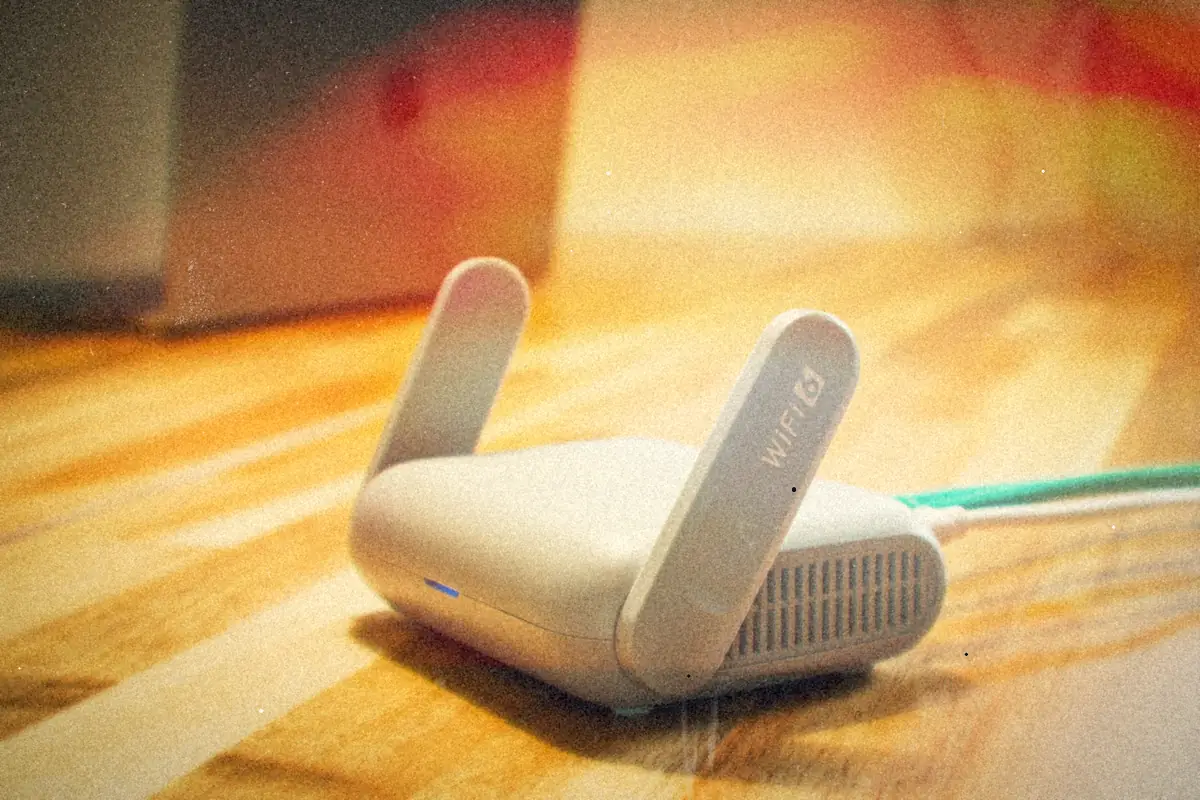
- The goal: pause one device from a phone in a couple of taps, and leave the rest of the house online.
- The easiest route is a router or mesh system with a built-in pause button per device or per person.
- MAC blocking works on almost any router, but it's fiddly, and phones with private Wi-Fi addresses dodge it.
- DNS filtering (Pi-hole, NextDNS) is great for blocking sites but isn't a true off switch.
We have fiber at the house and a lot of connected things. What I want is simple to describe: one tap to turn the internet off for one device. A tablet at bedtime. A console when homework isn't done. Everything else stays online.
It turns out there are a handful of ways to do this, and they're not equally good. Here's the lay of the land as I'm sorting through it.
Option 1: the router's own pause button
A lot of modern routers and mesh Wi-Fi systems have this built in. You open the app, find the device, and hit pause. The better ones let you group devices into a profile per person, so pausing "the kids' stuff" hits the tablet, the console and the phone at once, and you can put it on a schedule.
This is the one I'd want most, because it's exactly the feature, with no tinkering. The downsides:
- It depends on your hardware. An ISP-supplied router may have a thin version of this or none at all.
- Some of it sits behind a subscription. Several mesh brands keep the fancier parental controls in a paid tier.
Tip
Before buying anything, check the app for the router you already have. Look for "pause", "parental controls", "profiles" or "access control". It might already be there.
Option 2: MAC address blocking
Almost every router, even an old one, can block a device by its MAC addressThe hardware ID a device shows the local network. Routers can block by it, but many phones now use a random one per network for privacy., the hardware ID it shows the network. Add it to a block list and it can't get out.
It works, but it's clunky. You're usually doing it from a web admin page, not a friendly app, and there's a catch with modern phones and tablets: many use a private, randomized Wi-Fi address per network. Turn that on, and the device can show up as a stranger, which means your block list is blocking a ghost.
Fine for a console that never changes. Annoying for anything with a privacy setting.
Option 3: DNS filtering
Tools like Pi-holeFree software, usually on a Raspberry Pi, that answers your network's DNS lookups and quietly blocks ads, trackers or whole sites for the devices you choose. (self-hosted, often on a Raspberry PiA small, cheap single-board computer that runs Linux. Hobbyists put them inside just about everything.More: Building a FieldStation42 Cable Box) or NextDNS (a hosted service) sit in front of the internet's phone book. You can put devices in groups and block whole categories of sites, or everything, for one group.
This is great for blocking specific things like social apps or video sites, and it's where you'd go for "no YouTube after 9". But it's not a true off switch. A device can sometimes get around it with its own DNS settings, and anything that talks straight to an IP address doesn't ask the phone book at all.
I've already got a Pi earmarked for retro TV duty in the FieldStation42 box, so a second little Pi running Pi-hole doesn't scare me. It just solves a slightly different problem.
If it's really just YouTube
My old notes on blocking YouTube were mostly a list of router how-to links, so rather than give it its own post, here's the short version. You often don't need to block it outright. Several DNS filters can force YouTube's Restricted Mode instead, which hides a lot of what you'd want gone:
- CleanBrowsing's free Family Filter turns on Restricted Mode and SafeSearch for every device that uses it. No account needed.
- NextDNS can block YouTube for one configuration, or enforce Restricted Mode there.
- OpenDNS still offers free home filtering through FamilyShield and OpenDNS Home.
- In Pi-hole, you can use Google's own documented method: add local CNAME records pointing
www.youtube.com,m.youtube.com,youtubei.googleapis.com,youtube.googleapis.comandwww.youtube-nocookie.comatrestrict.youtube.com(orrestrictmoderate.youtube.comfor the gentler version). Google says to leave the other YouTube hostnames alone.
Same catch as the rest of this section: it's a filter, not an off switch. Checked against the providers' own pages in September 2026.
Option 4: a firewall box
Small home firewall appliances sit behind your router and give you per-device control, schedules, pause buttons and alerts, all from an app. It's the most complete answer, and also the most money and the most setup. For a house that just wants to pause a tablet, it's probably more tool than the job needs.
Side by side
| Approach | Off switch? | Ease | Watch out for |
|---|---|---|---|
| Router or mesh pause | Yes | Easiest | Hardware and subscriptions |
| MAC blocking | Yes | Fiddly | Randomized Wi-Fi addresses |
| DNS filter | Mostly no | Moderate | Workarounds, IP-direct traffic |
| Firewall box | Yes | Most setup | Cost |
Where I've landed so far
If the router you have can pause a device from an app, start there. It's the only option on the list that matches the goal exactly: one device, one tap, no project.
Screen time has been a real thing in our house, which I wrote about in the YouTube Shorts post. An off switch isn't a parenting plan. But it's a lot easier to stick to a plan when the button is right there on your phone.
If you're more interested in when the internet goes down on its own, I've got a little ping monitor that logs every outage for that.